
Why successful website projects start with listening (not designing)
Read more
Two-Factor Authentication (shortened to 2FA, also known as Multi-Factor Authentication), is an enhanced way of securing your digital account against unauthorised entry. It works in addition to a password, bringing a second layer of security that an attacker would have to overcome before gaining access to your account.

2FA generates a time-limited access code on an additional device or piece of software such as your mobile phone, email or even a special 2FA USB device. It usually consists of 6 random numbers.
Because this code is not stored in the same place as your password and changes frequently, even an unauthorised person who discovered your password would not be able to log in without also having access to this second device. The short time limit prevents attackers from figuring out the code before it changes.
The humble digital password was the only way to keep a digital account safe way back in the past. However, technology and subsequently cybercrime have come a very long way since then. Modern cybercriminals are able to break through simple password protection without much difficulty. Unauthorised access to the WordPress CMS can lead to severe consequences for your site, such as stolen or deleted data, the installation of malicious files, or even taking down the website entirely, so extra defences are vital.
With a standard WordPress installation, we implement 2FA using a plugin called Wordfence Security. This plugin is highly rated, regularly maintained and has a long-standing reputation for quality.
For other platforms, 2FA may be added using Auth0 or other relevant packages.
This guide is for WordPress. If your site is developed on a different platform, please contact us to discuss 2FA for your site.
When 2FA is added to your WordPress website, we will enable it by default for all accounts.
For websites with member and admin accounts, we can limit 2FA to those with CMS access only. When we enable 2FA, we set what is called a “grace period”. This is usually 30 days, during which 2FA is active but not enforced, allowing you time to set it up.
In order to set up 2FA for your account, you will need an authenticator, for example, the Google Authenticator app from the App or Play Store.
Next, log in to the WordPress CMS and go to Wordfence > Login Security on the left-hand menu.
OR
Visit Users, hover over your username and click the option that says ‘Login security’.
Next, select the Two-Factor Authentication tab, and you will see the following screen.
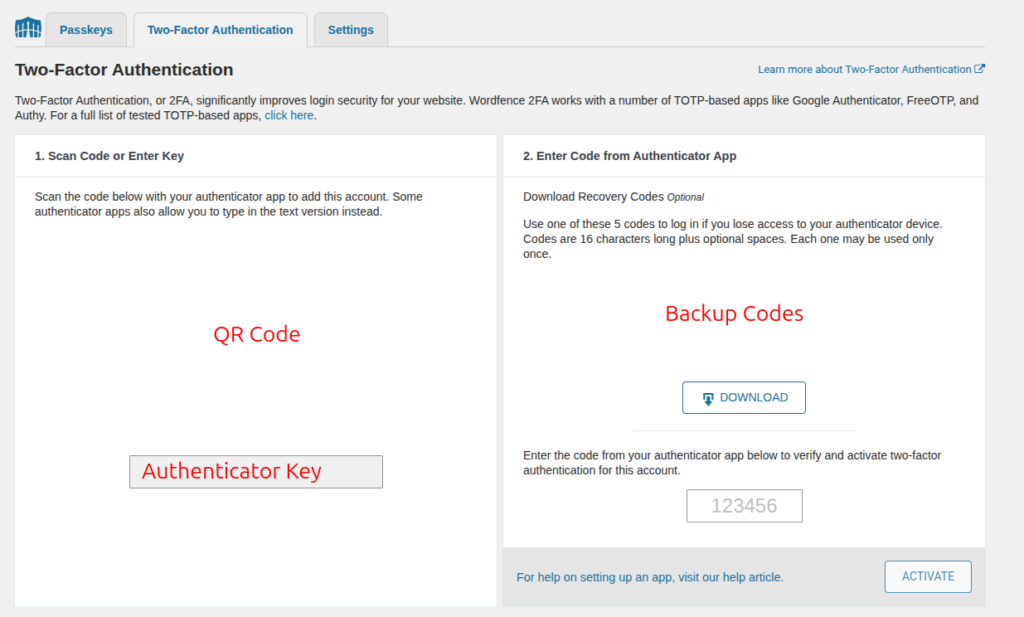
Now you need to open your authenticator application and add your website by scanning the QR code, or entering the authenticator key manually when prompted.
The authentication codes for 2FA will be generated on your device, but your WordPress CMS authentication won’t be enabled yet.
To complete the setup, enter the 6-digit code from your authenticator app into the box on the web page you have open and press ‘Activate’.
If it is successful, you will see the following message: “Wordfence two-factor authentication is currently active on your account.”
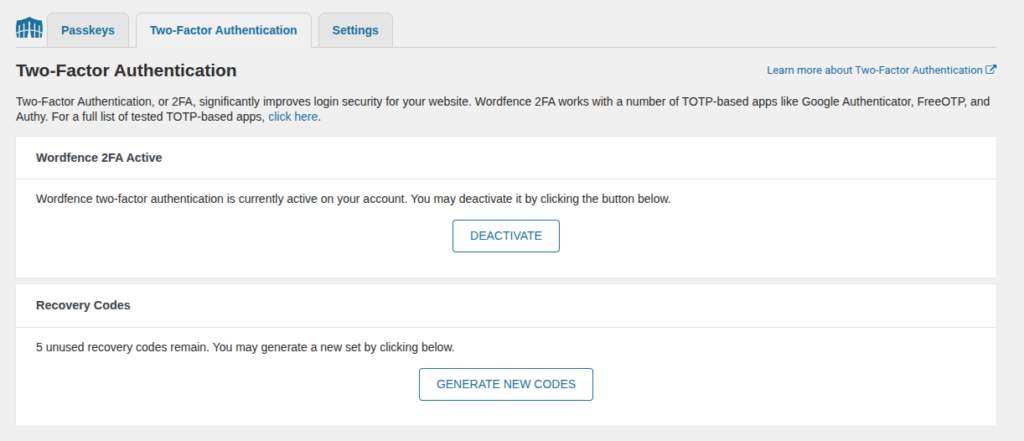
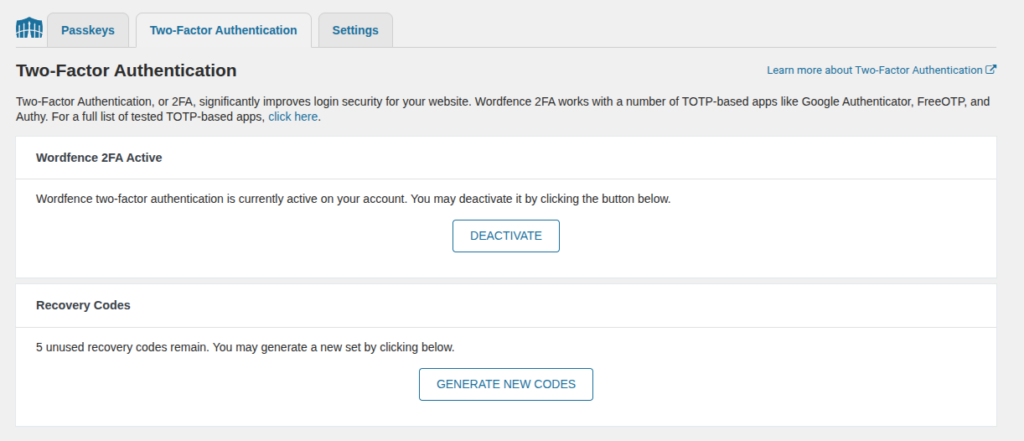
When you set up your 2FA, you are encouraged to download the Backup Codes file. This provides a set of single-use emergency codes which can be entered if needed. Please put this file somewhere secure where it cannot be accessed by anyone else. If you run out of emergency codes or lose the file, it can be regenerated on the WordFence login security page as shown here.
In addition to 2FA, you can help keep your account secure by using a complex password that is more difficult for attackers to discover. A 4-character password can be broken instantly, regardless of complexity, whereas a 16-character password consisting of uppercase and lowercase letters, numbers and symbols will provide a higher level of security.
If you find yourself completely locked out, whether due to an expired grace period before 2FA setup was completed, or because you have misplaced your passwords, backup codes, and authentication devices, our team is here to help. If we manage the hosting for your website, our developers can regain access and reset your settings.
To protect our clients’ sites against spam and phishing attempts, we verify identity using both an email confirmation and, ideally, a video call before granting access.
If you have any questions about 2FA or your website security, get in touch for a no-obligation conversation about best-practice security protections for your website.